How it works
From sign-up to a PDF report in four steps.
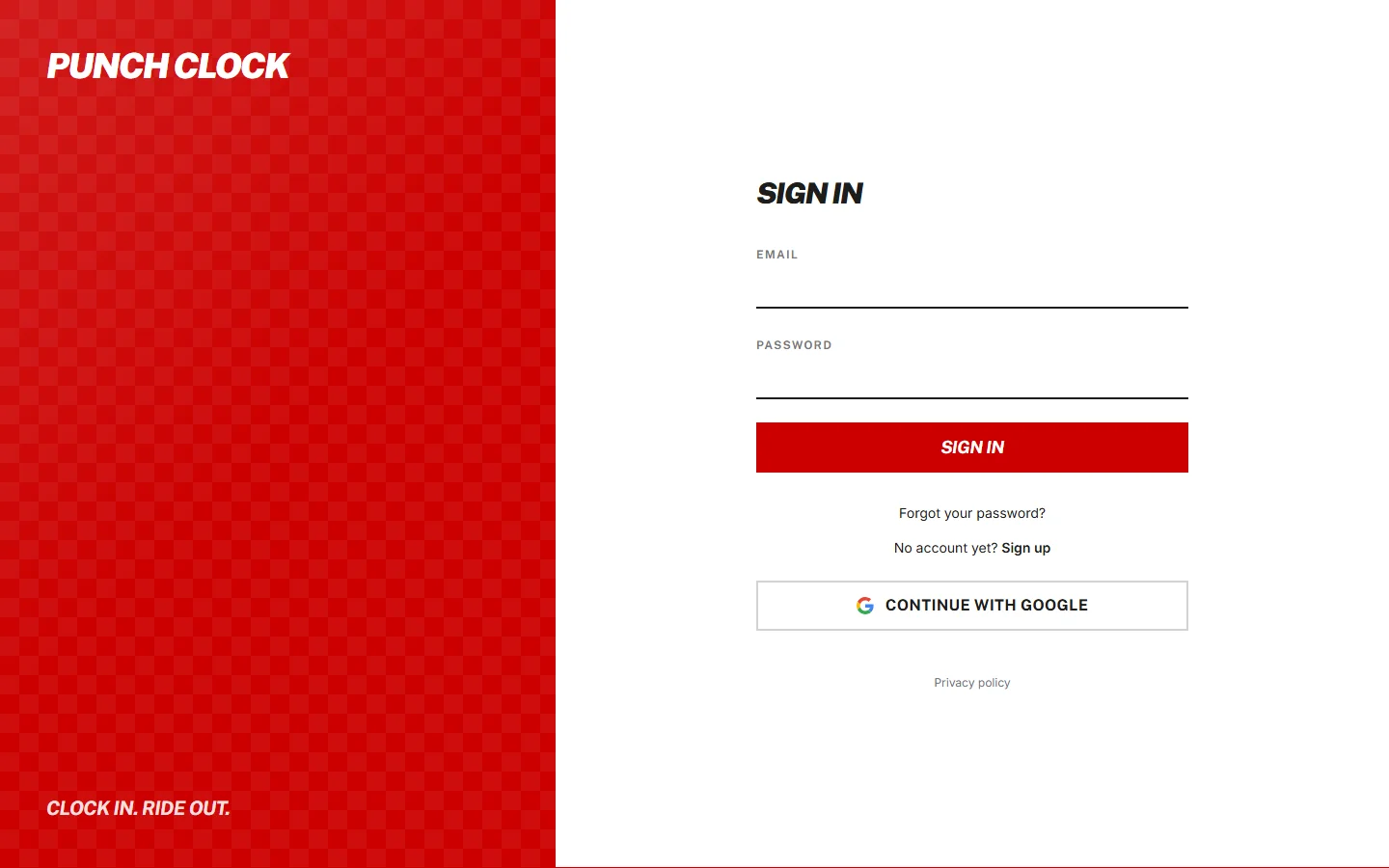
1. Sign up
Continue with Google, or use an email address and a password. If you use a password, Punch Clock emails you a link to verify the address. Your workspace is created for you and is yours alone.
2. Create your first project
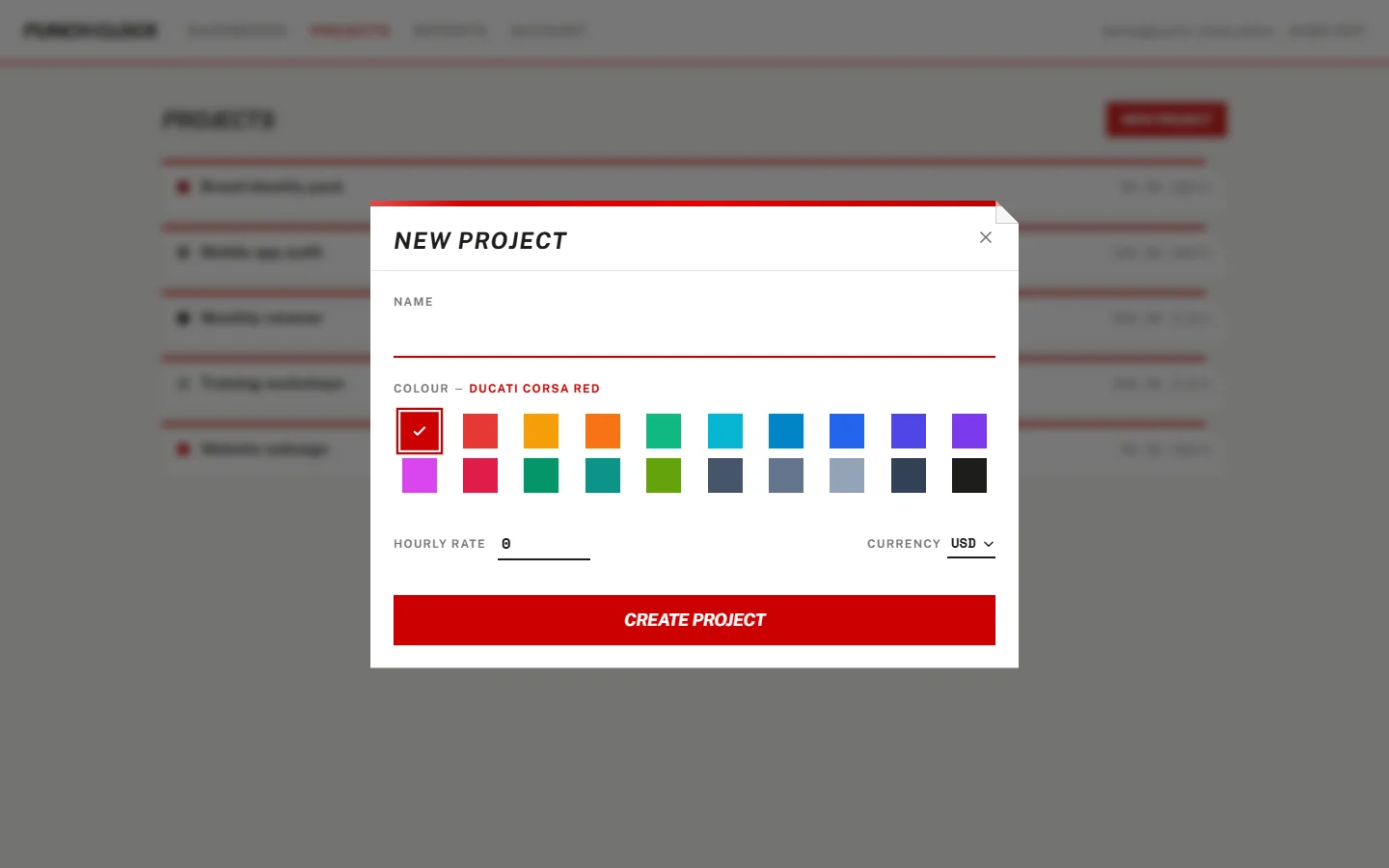
Name the project, pick a colour, then set the hourly rate and the currency, USD or ILS. This comes first because every timer and entry belongs to a project. When the project exists, the dashboard opens.
3. Track time
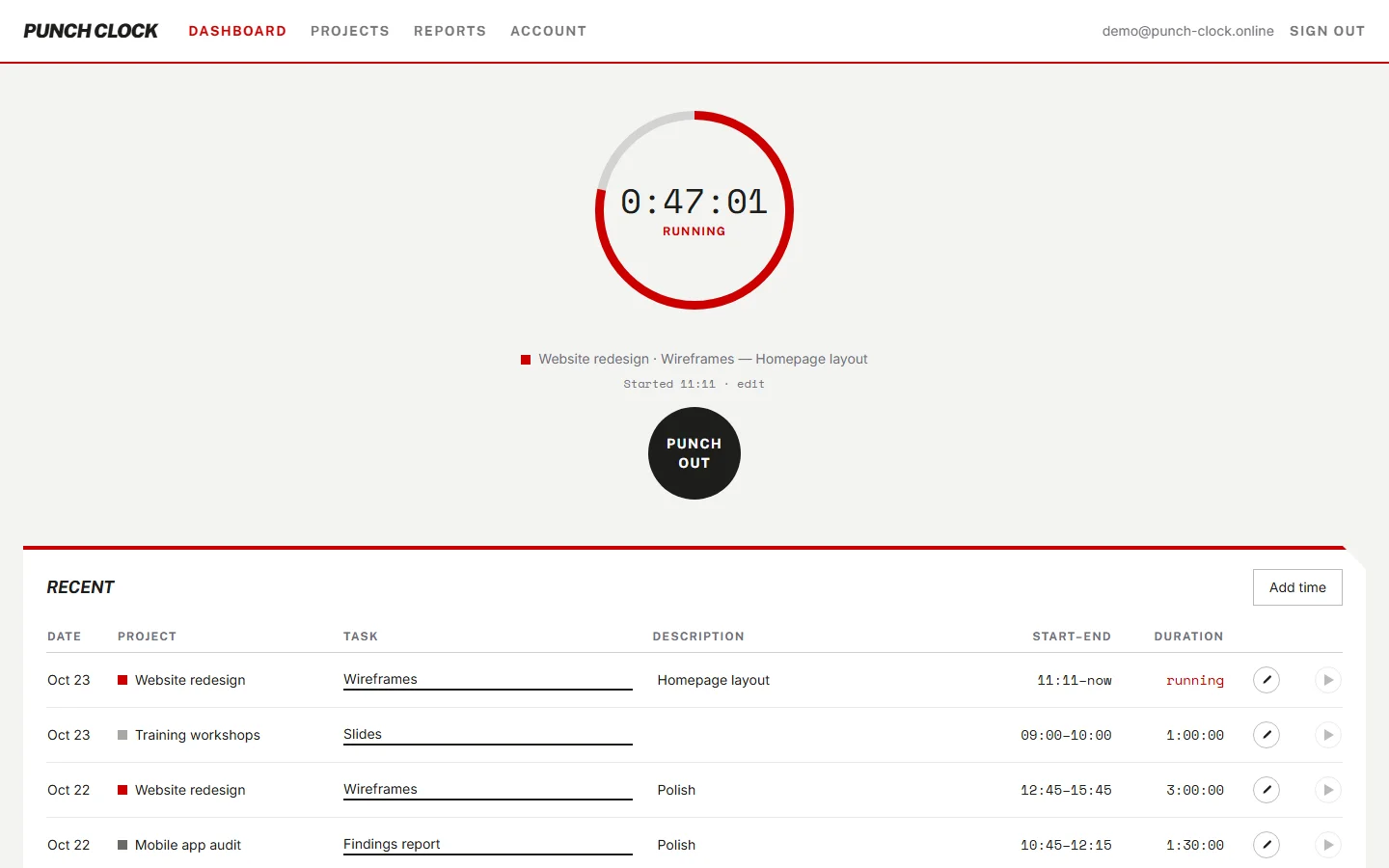
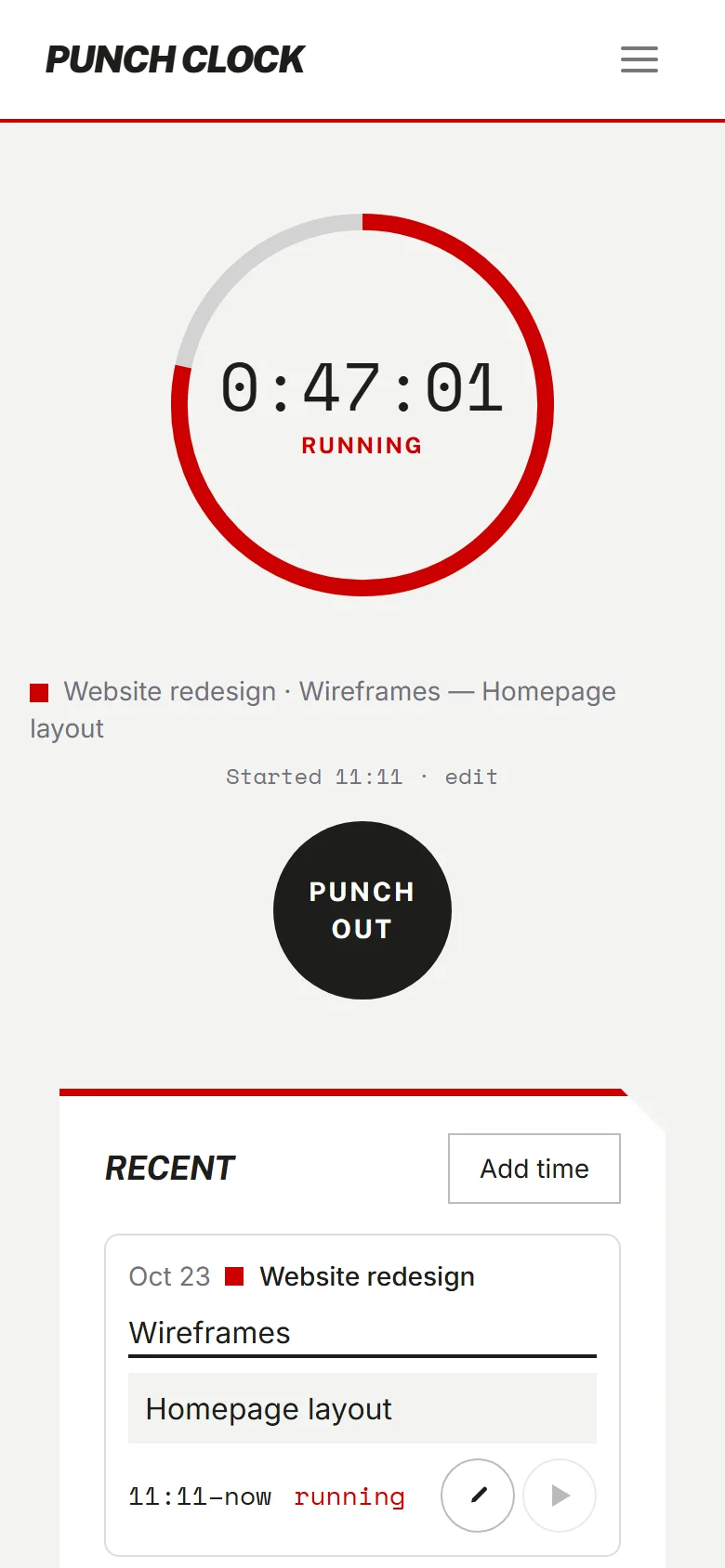
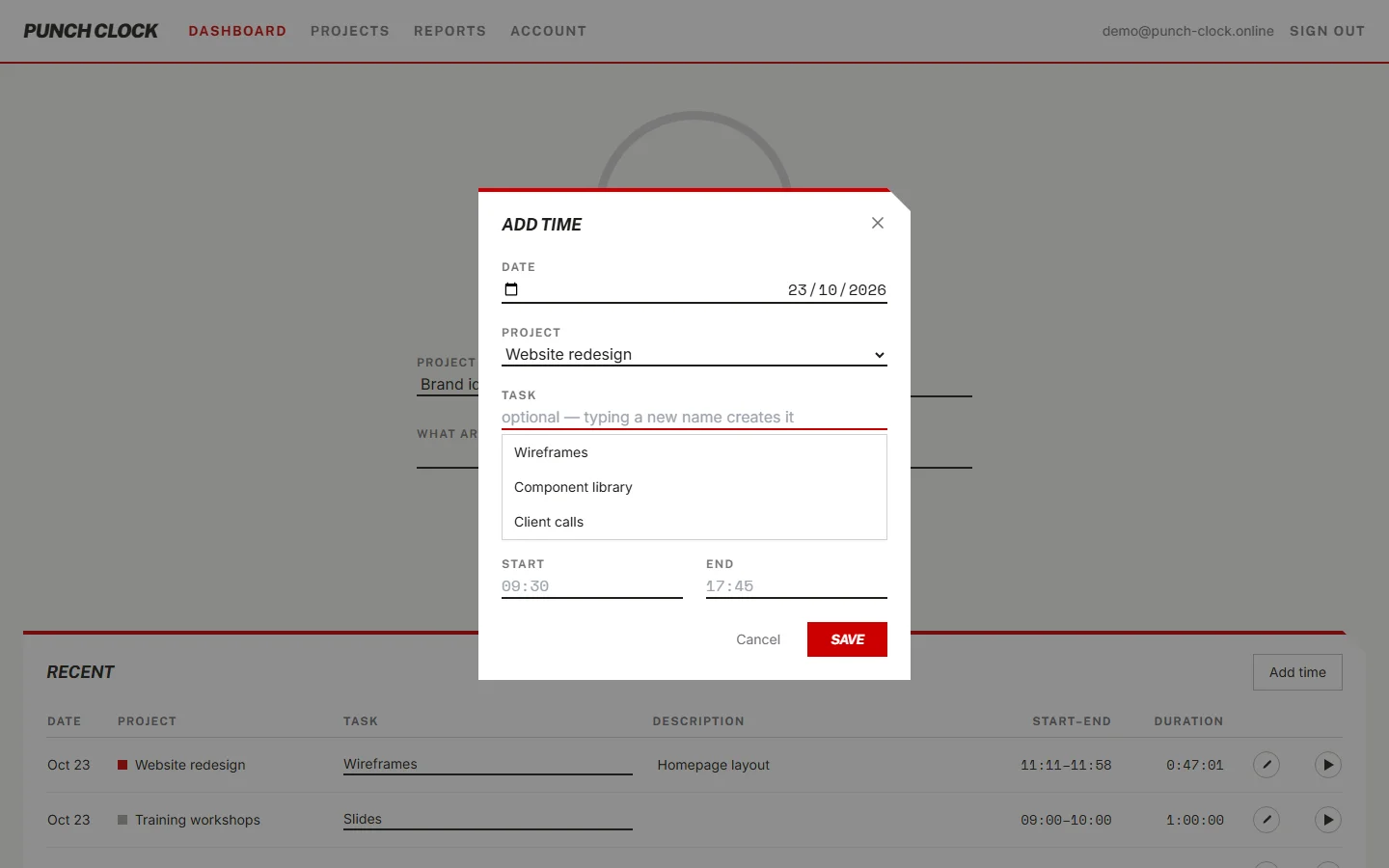
Choose the project. Add a task if you want one. Type a name that does not exist yet and choose Create to make it on the spot. Press start. Stop when you are done. Missed a session? Add it by hand with a date and start and end times. Any entry can be edited afterwards.
4. Review and export
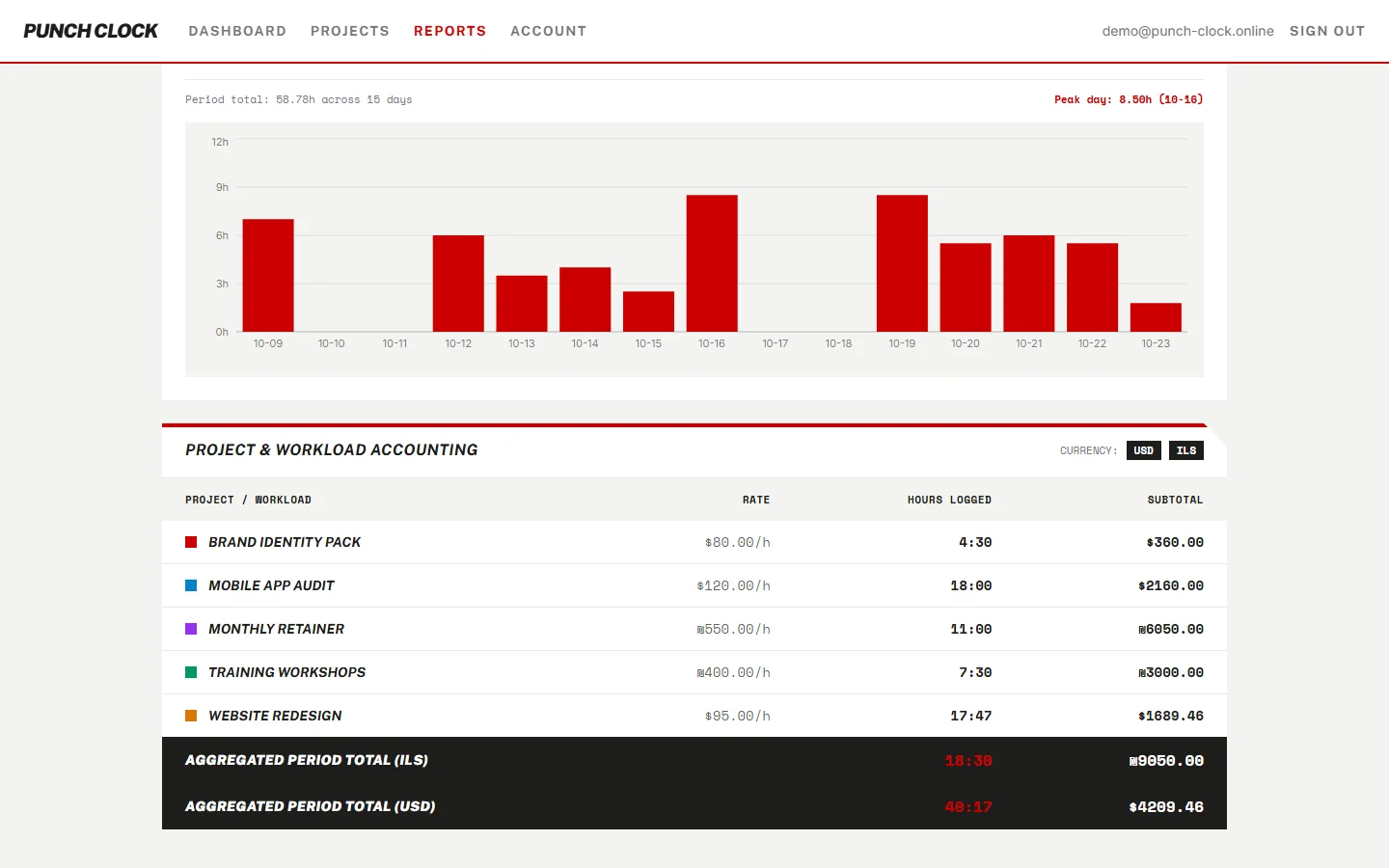
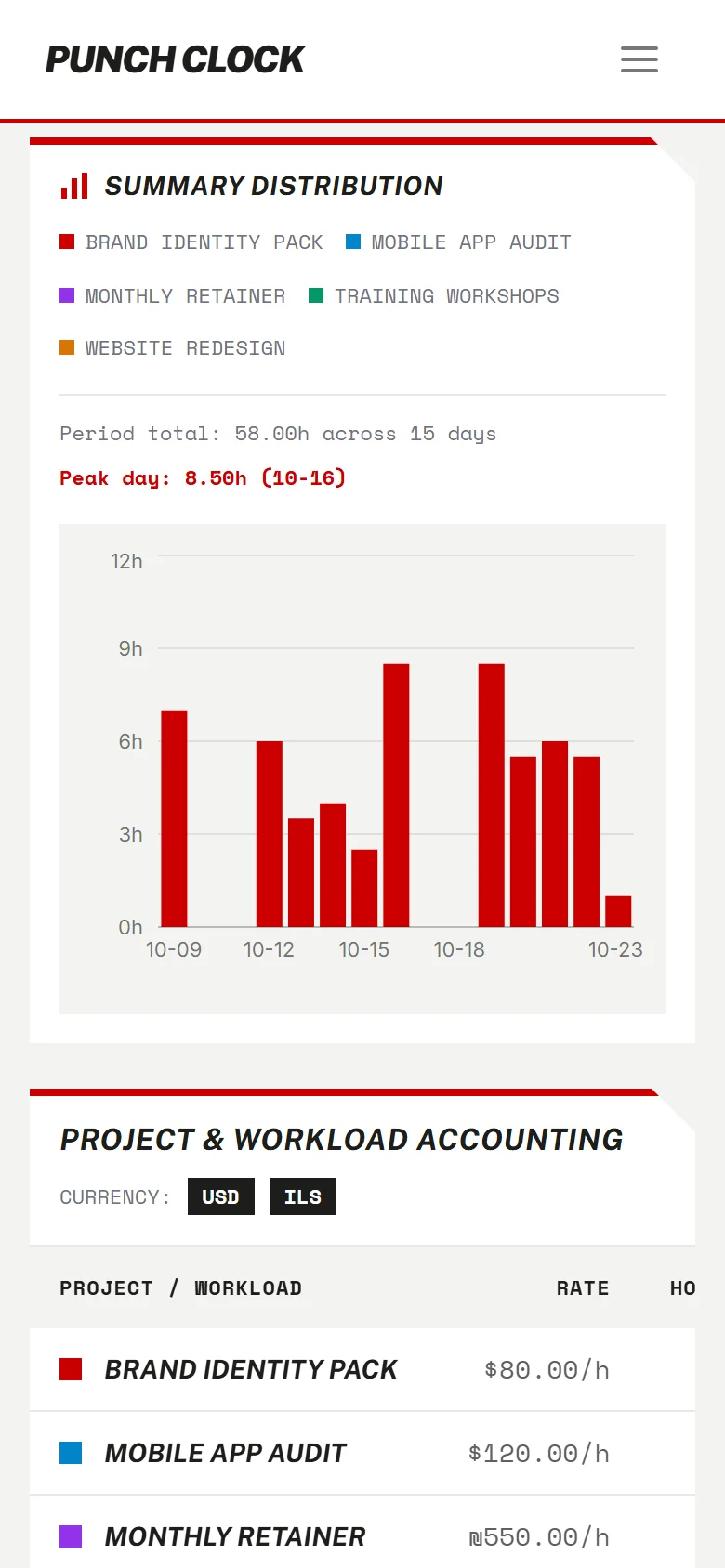
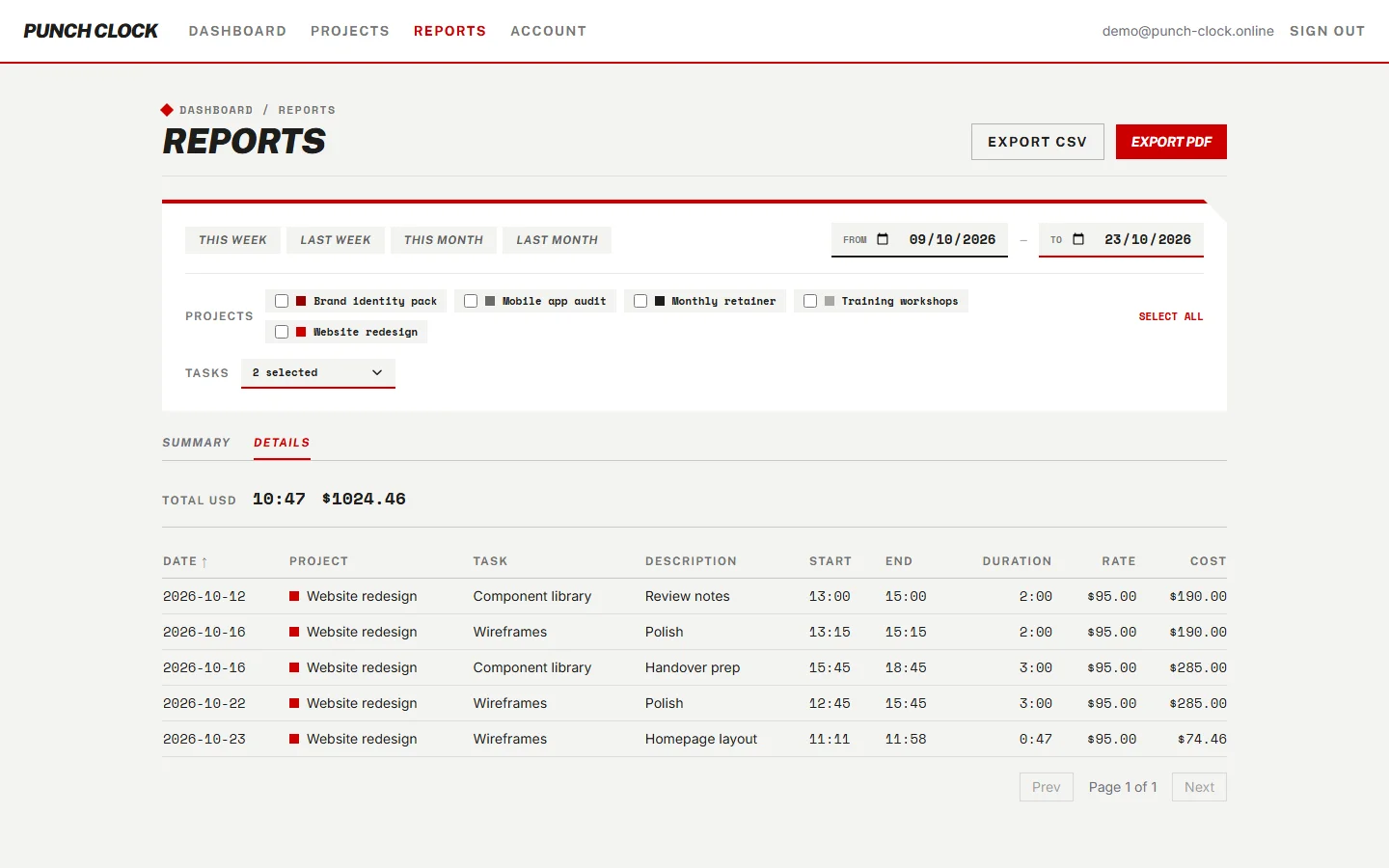
Open Reports. Pick a project, a task and a date range. Read the summary and its chart, or the details entry by entry. Totals stay per currency. Export the filtered rows as CSV, or print the PDF work report.
Coming from another app?
Import your projects, tasks and time entries from Settings, then Import. The list of supported sources is growing.