Your own workspace from the first click
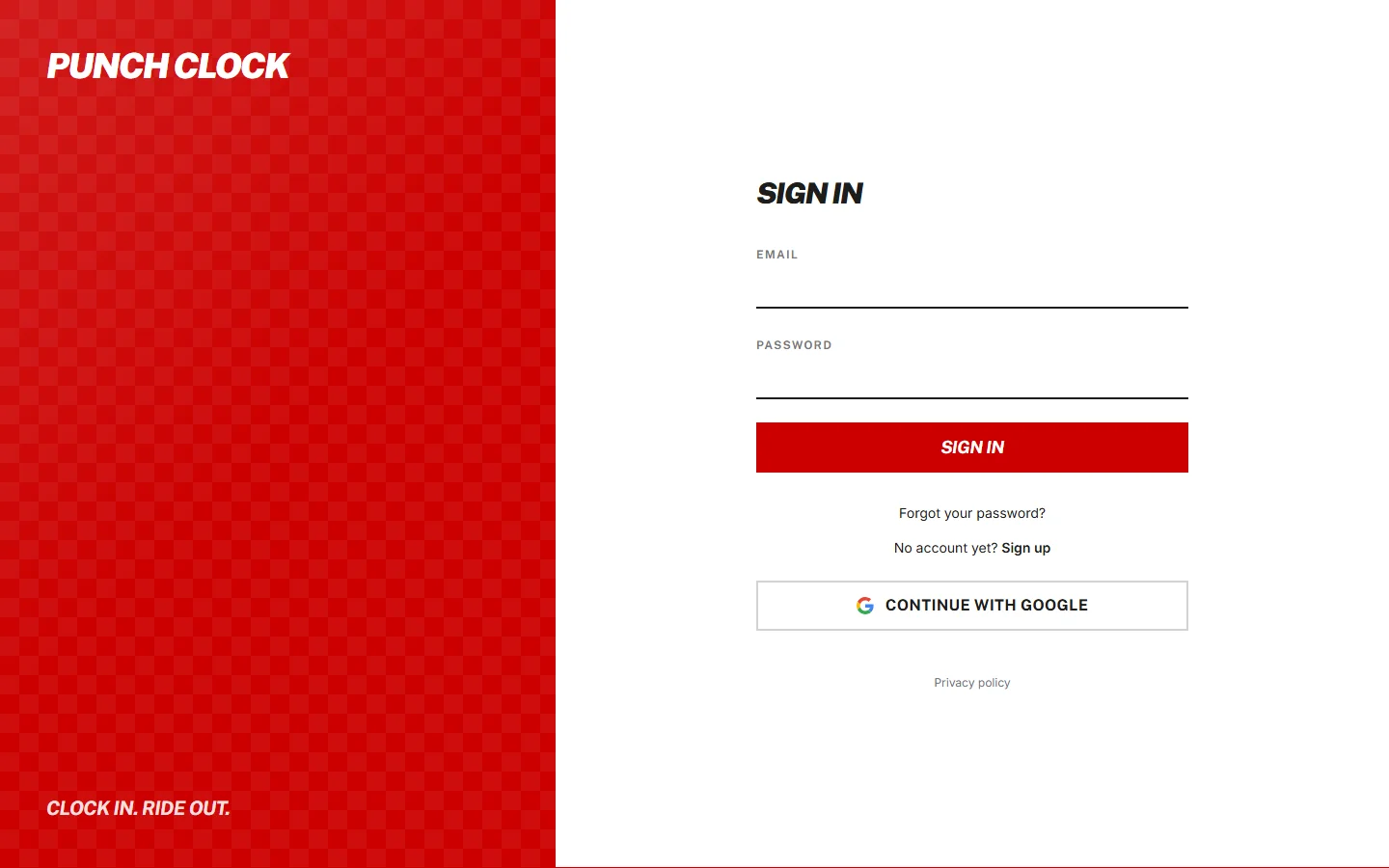
Anyone can sign up. Each sign-up gets its own isolated workspace. Sign in with Google, or with email and password. Email addresses are verified, and a forgotten password is reset by email.
A rate on every project
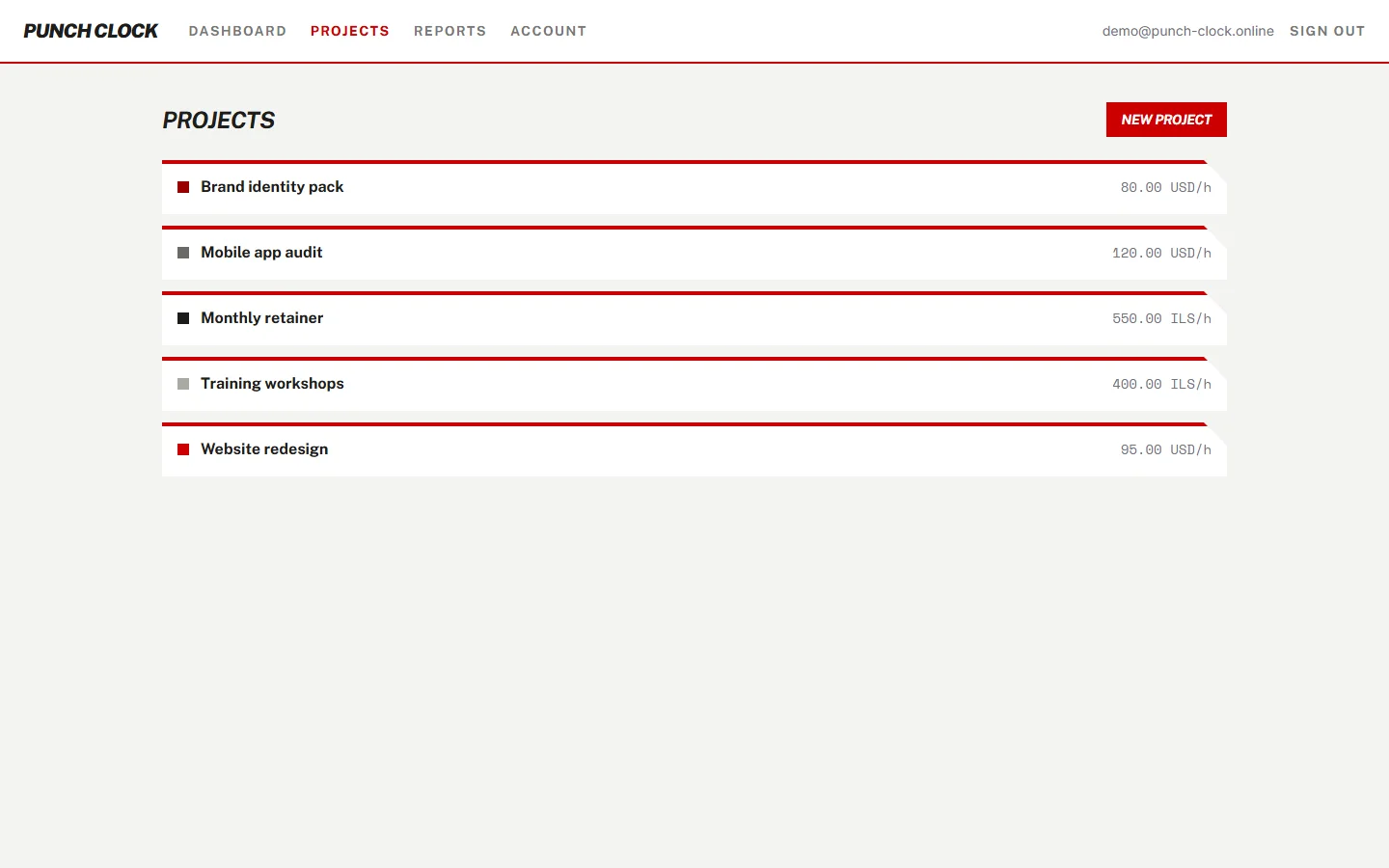
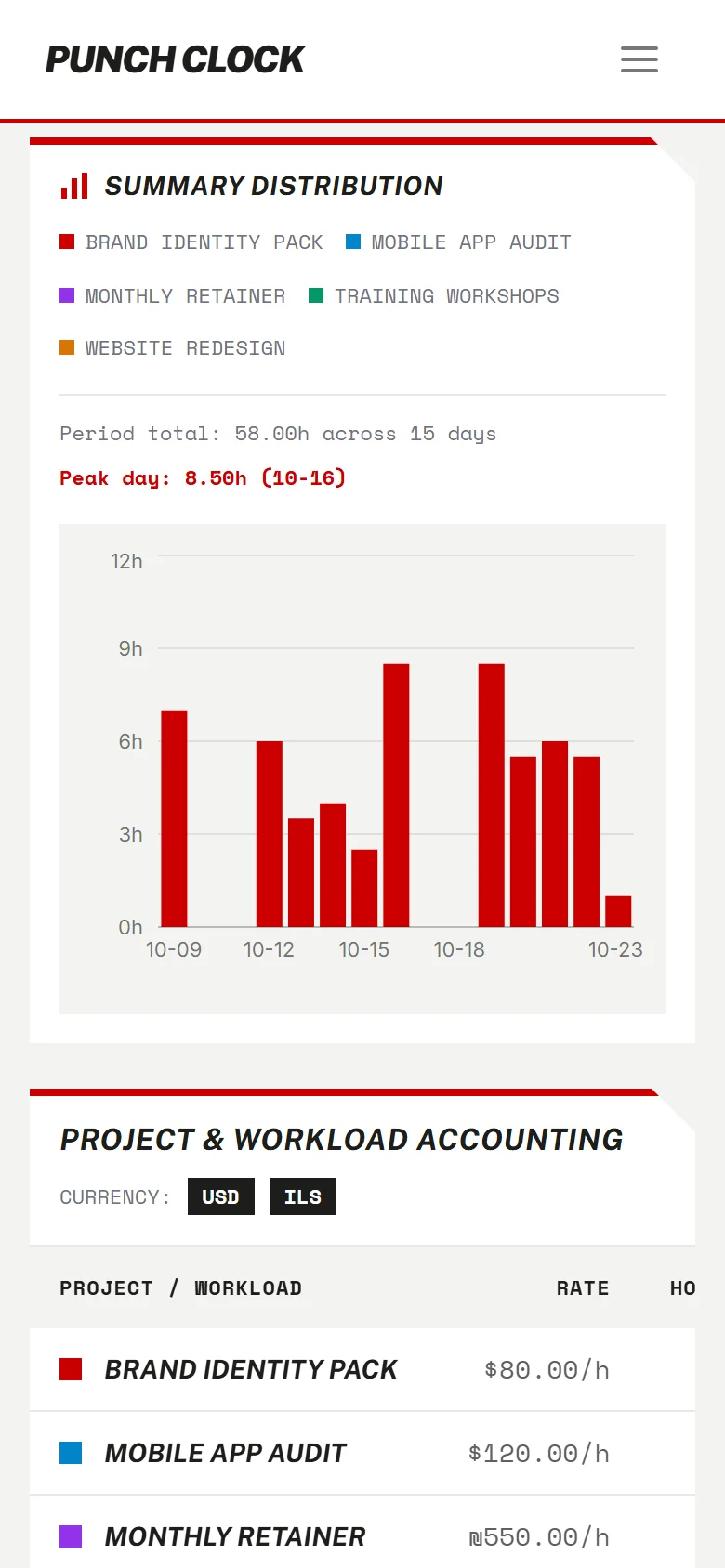
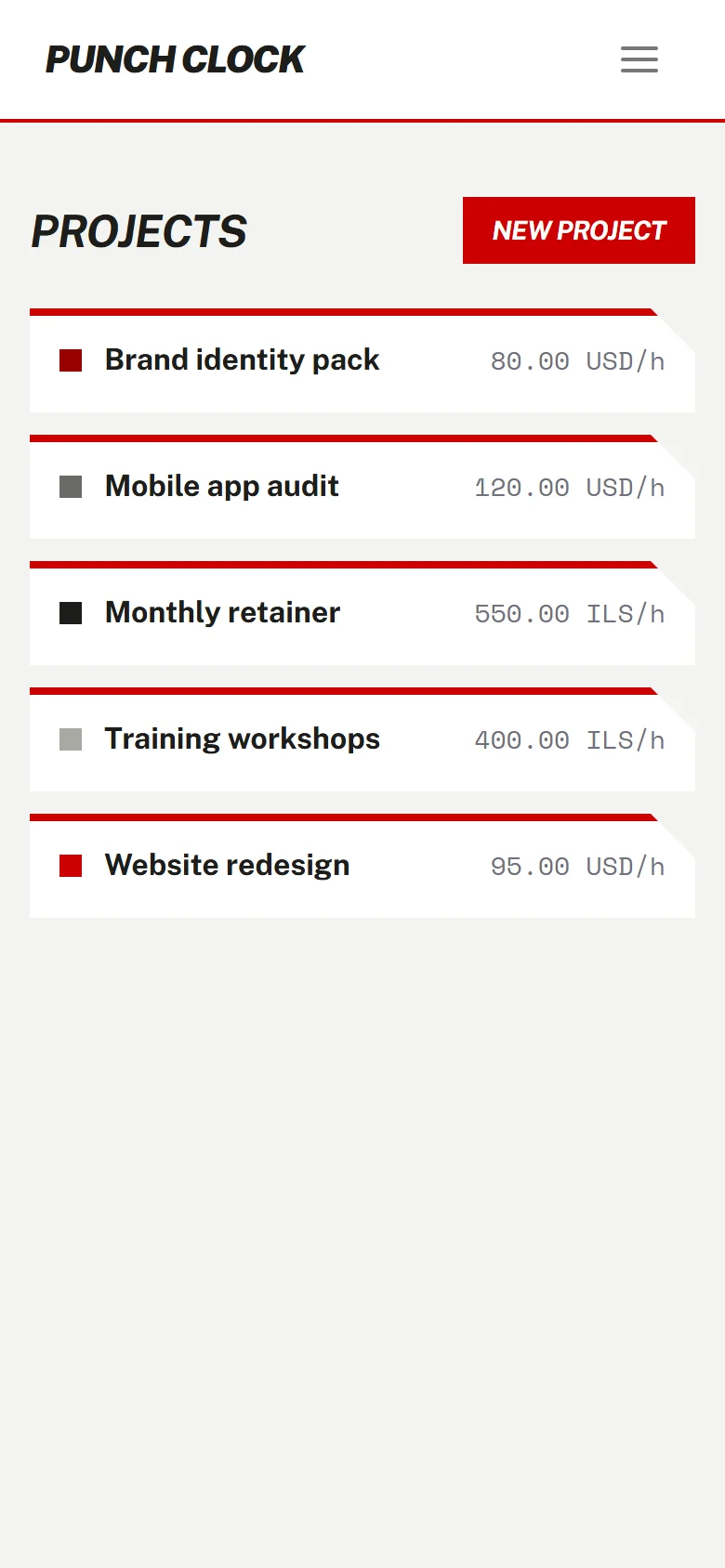
Give each project an hourly rate and a currency, USD or ILS. One workspace can bill one client in dollars and another in shekels. When a project is finished, archive it. Archived projects keep all their history.
Set up once, then track
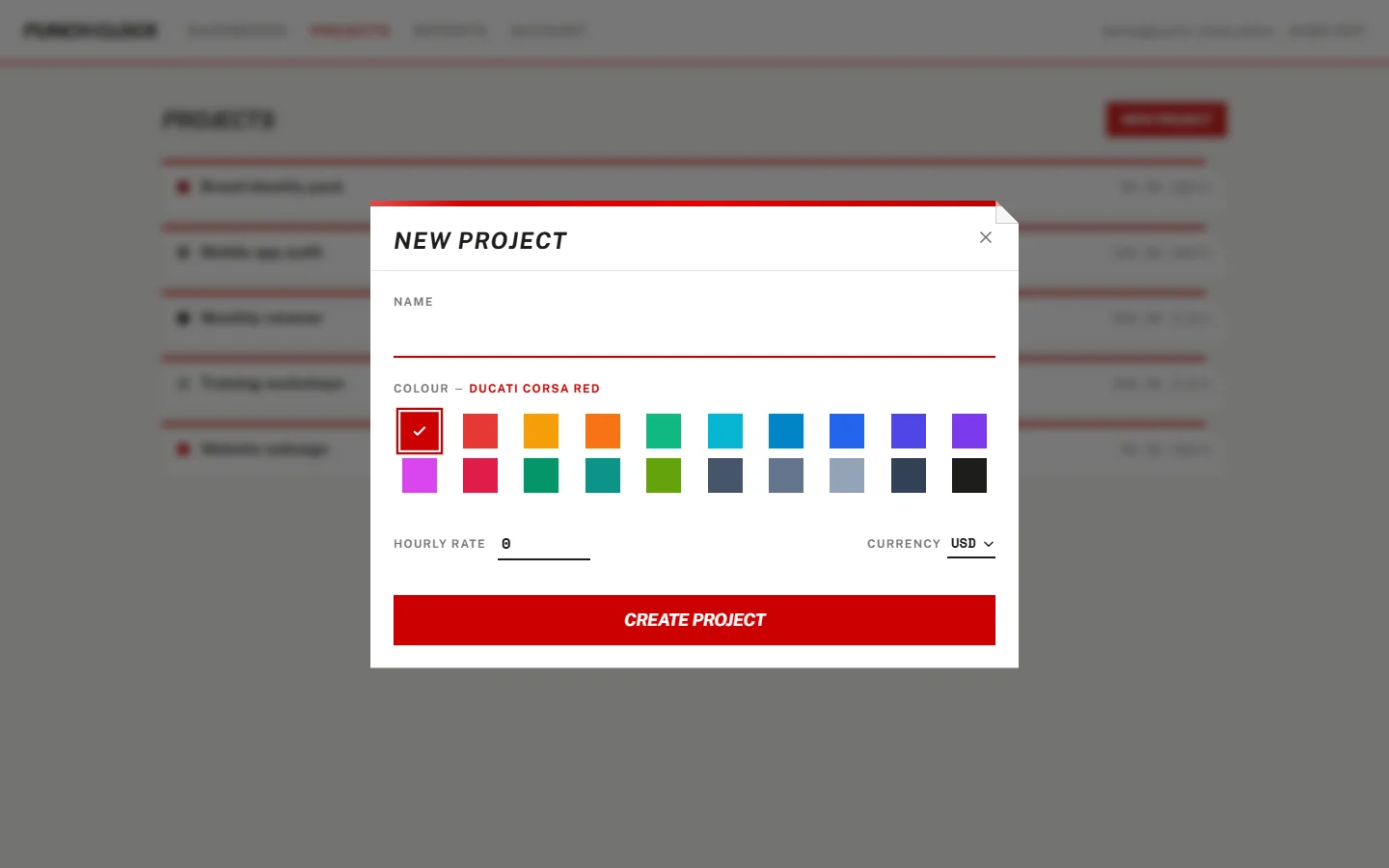
Every timer and every entry belongs to a project. So the first thing Punch Clock asks for is one project: a name, a colour, a rate and a currency. Then the dashboard opens.
Tasks under projects
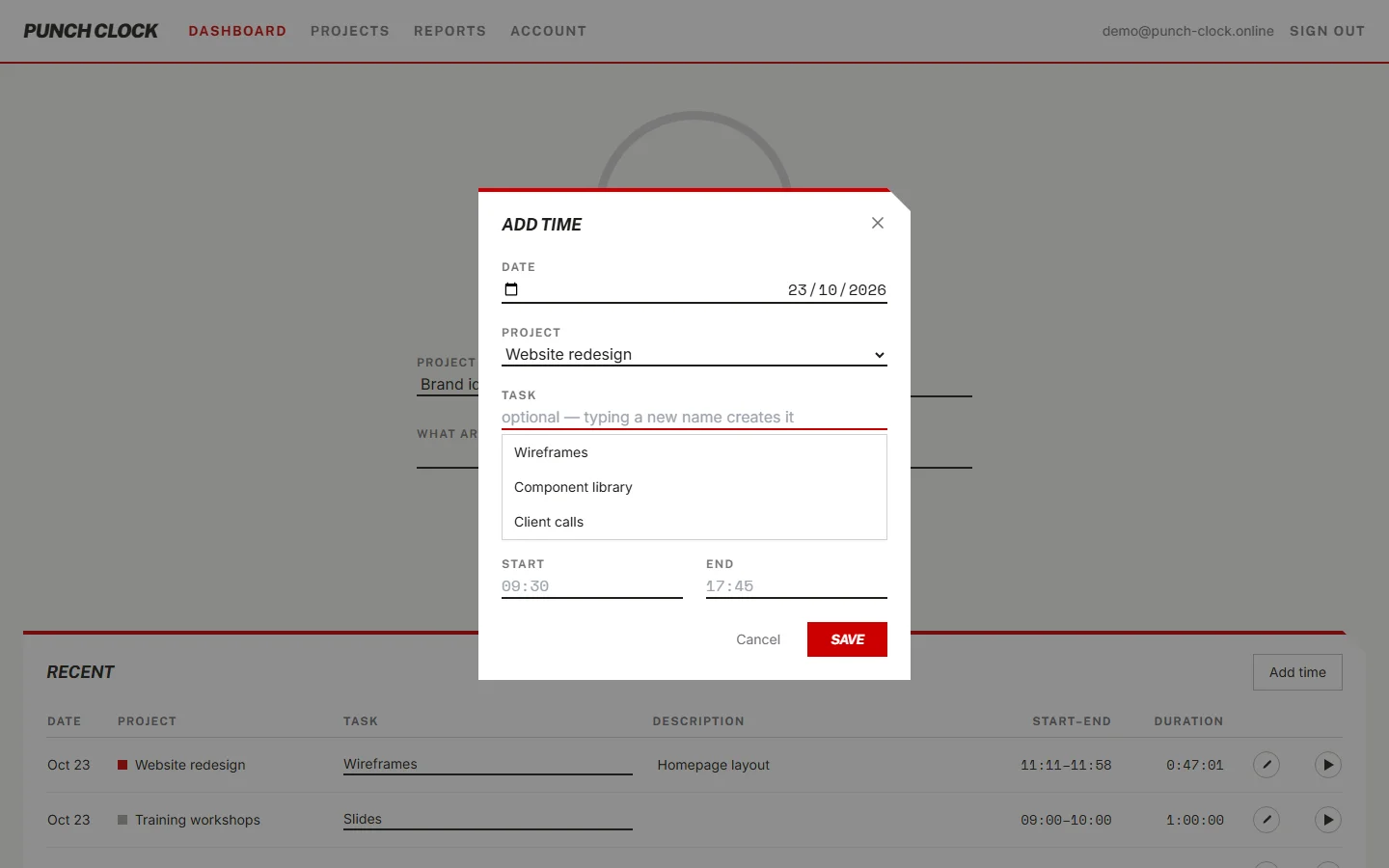
Break a project into tasks. Create a new task while you log time: type its name in the task picker and choose Create. Tasks archive instead of disappearing, so old entries keep their labels.
One timer, always correct
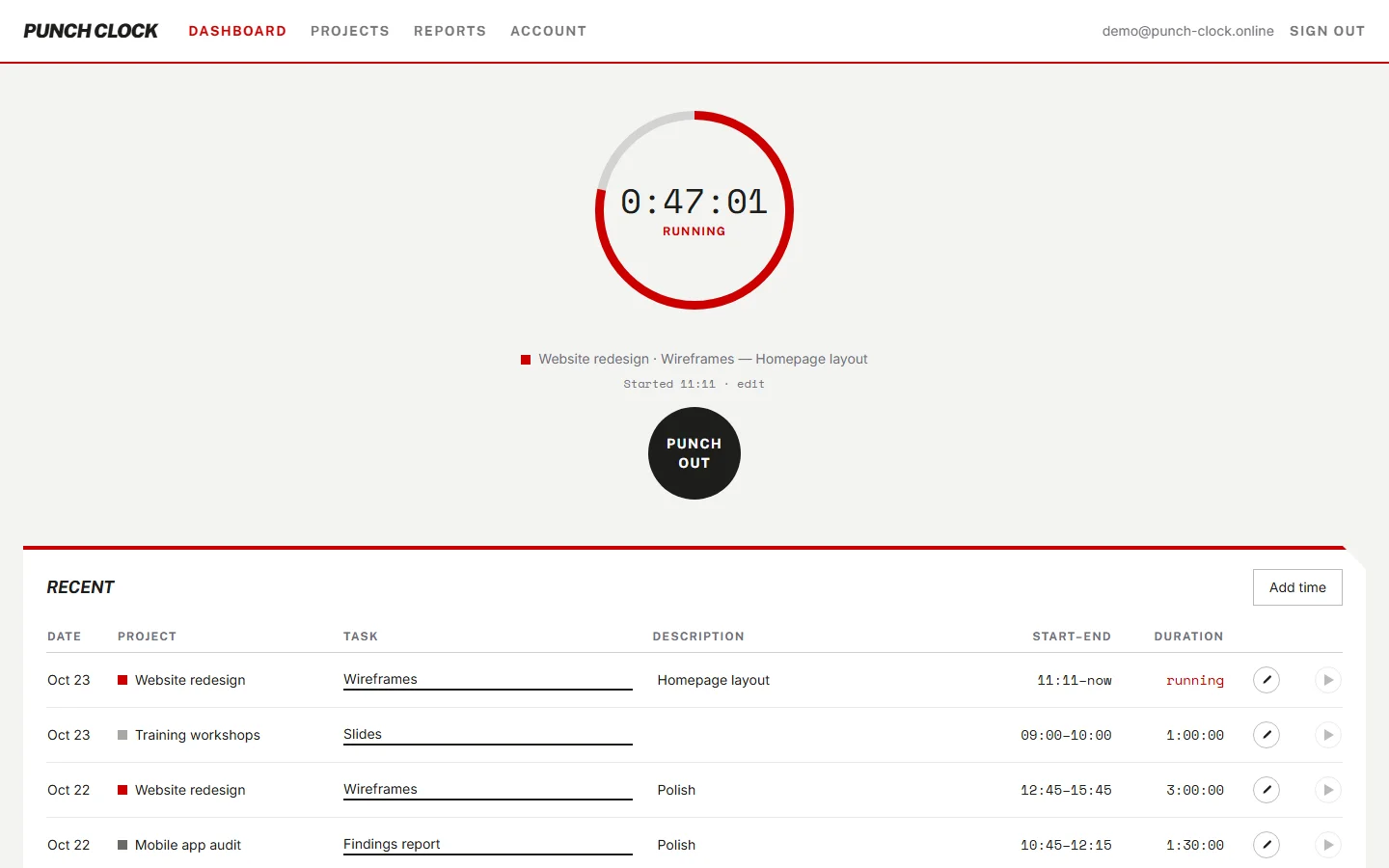
Choose a project, add a task and a description if you want, then start. The start time is recorded on the server, and the elapsed time on screen is computed from it. It stays correct across a reload. Only one timer runs per user: starting a new one stops the running one. While a timer runs, the browser tab icon carries a red dot.
Forgot to start it? Enter it by hand
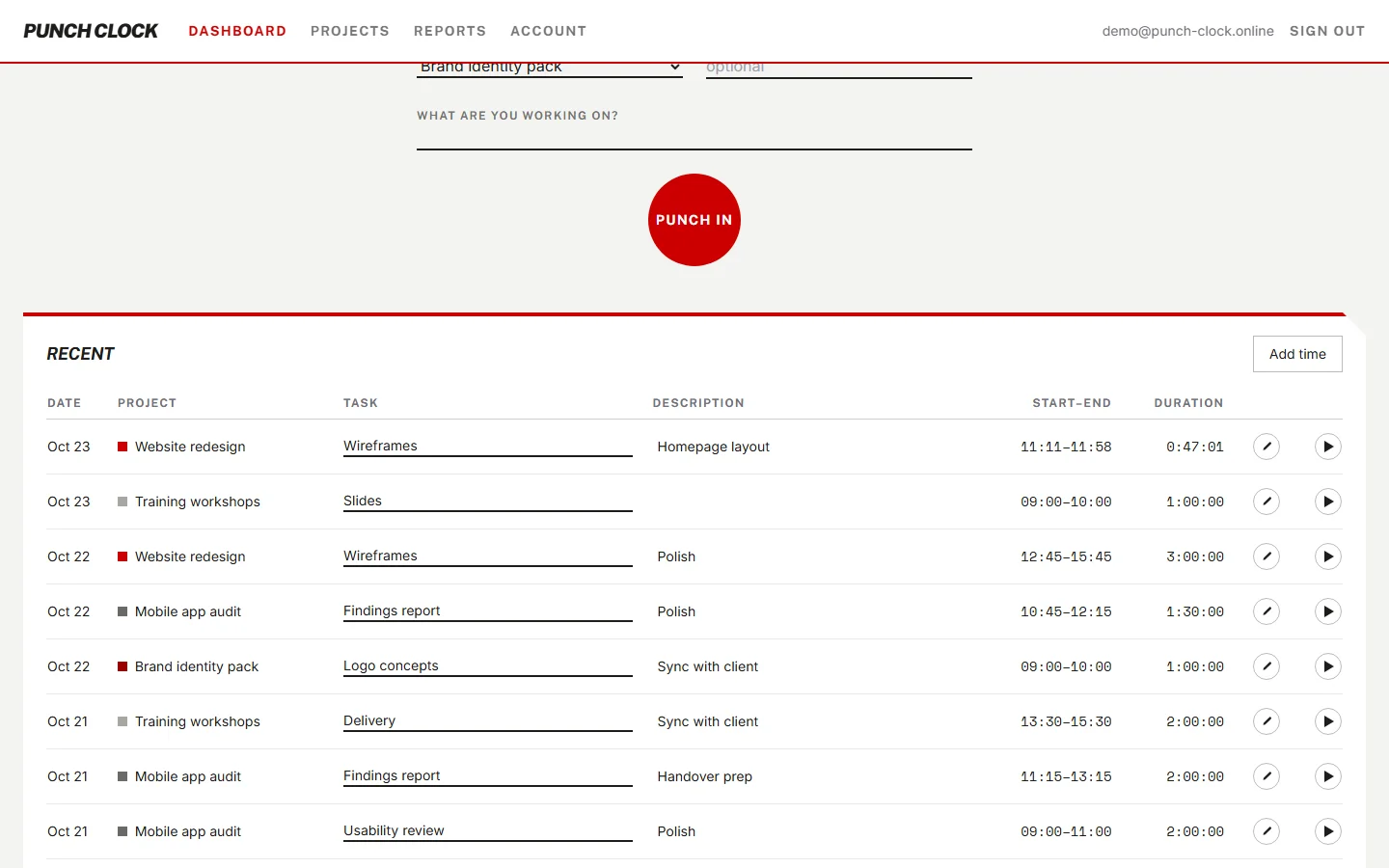
Add an entry with a date and start and end times, or a date and a duration. Edit any entry afterwards: project, task, description and times. Delete the ones you do not want. The dashboard lists your most recent entries, and a play button on each row starts a new timer on the same project and task.
Past work keeps its price
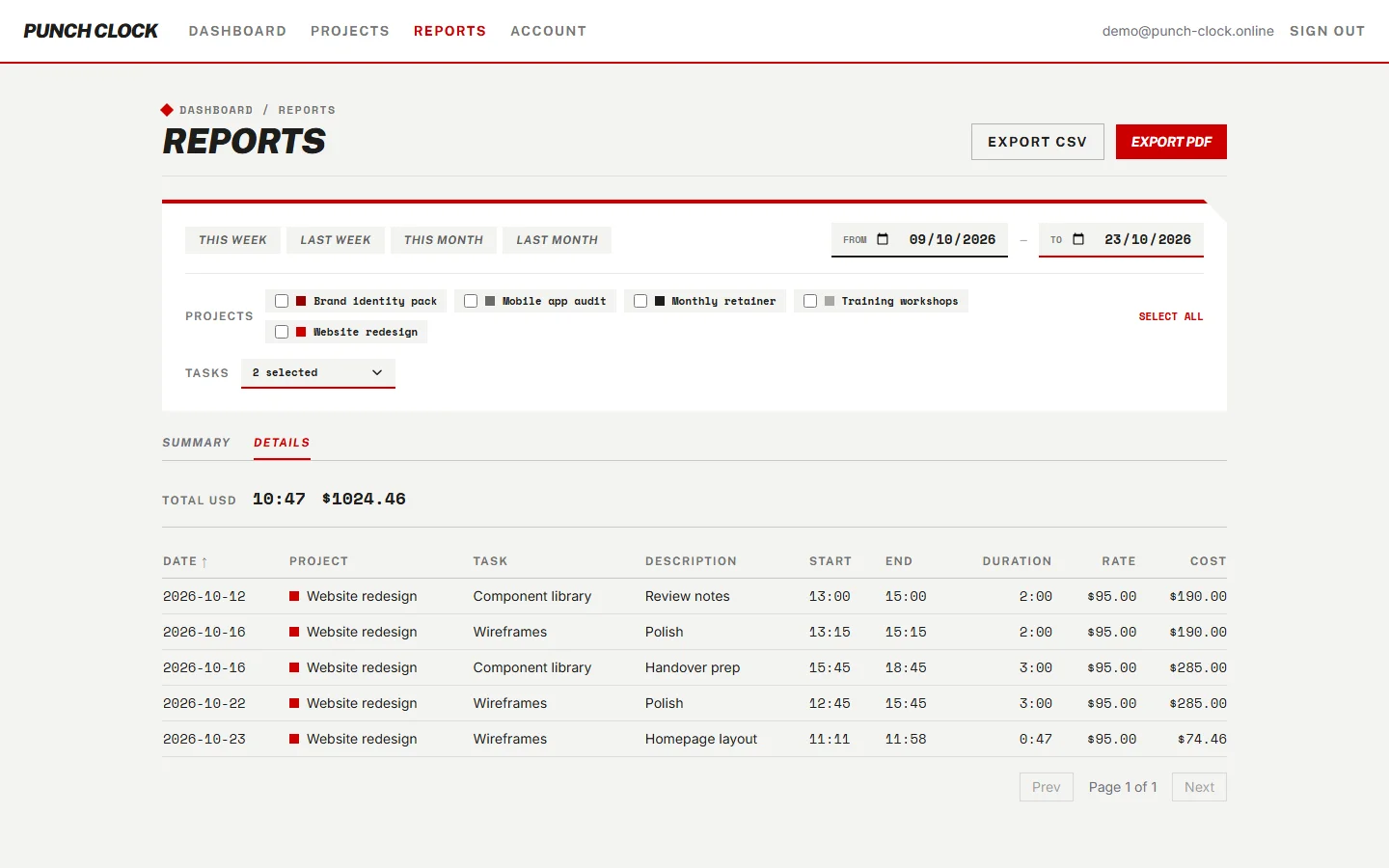
The rate and currency are saved on each entry when you log it. Raise a project's rate and only new entries use the new figure. Last month's report does not change.
Summary and details
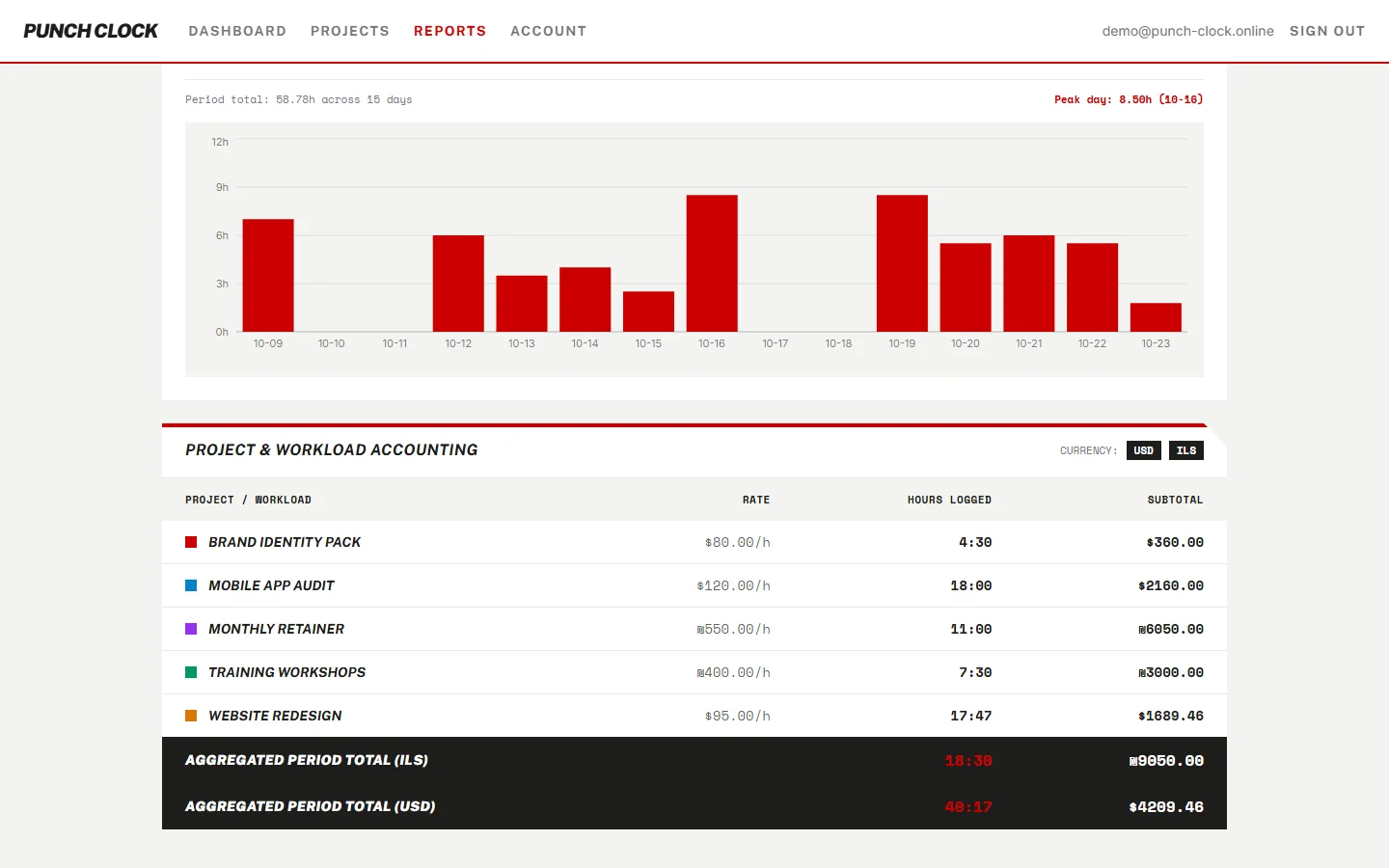
The summary groups hours and cost by project, with a bar chart of hours over the range. The details tab lists every entry with date, project, task, description, start, end, duration, rate and cost. Filter by project, task and date range. Presets cover this week, last week, this month and last month, or set a custom range.
Totals per currency, never mixed
A USD total and an ILS total appear as two figures. Punch Clock does not add them together, because it holds no exchange rate.
CSV and PDF
Export exactly the rows you filtered as CSV, with hours and cost columns. Or print a PDF work report: a title, the date range, total hours and the amount per currency, then line items grouped by project. The file is named "<project> work time report <from>-<to>".
Import from other time-tracking apps
Go to Settings, then Import. Projects, tasks and time entries come across. The list of supported sources is growing.
Works on a phone. Fast on a keyboard.
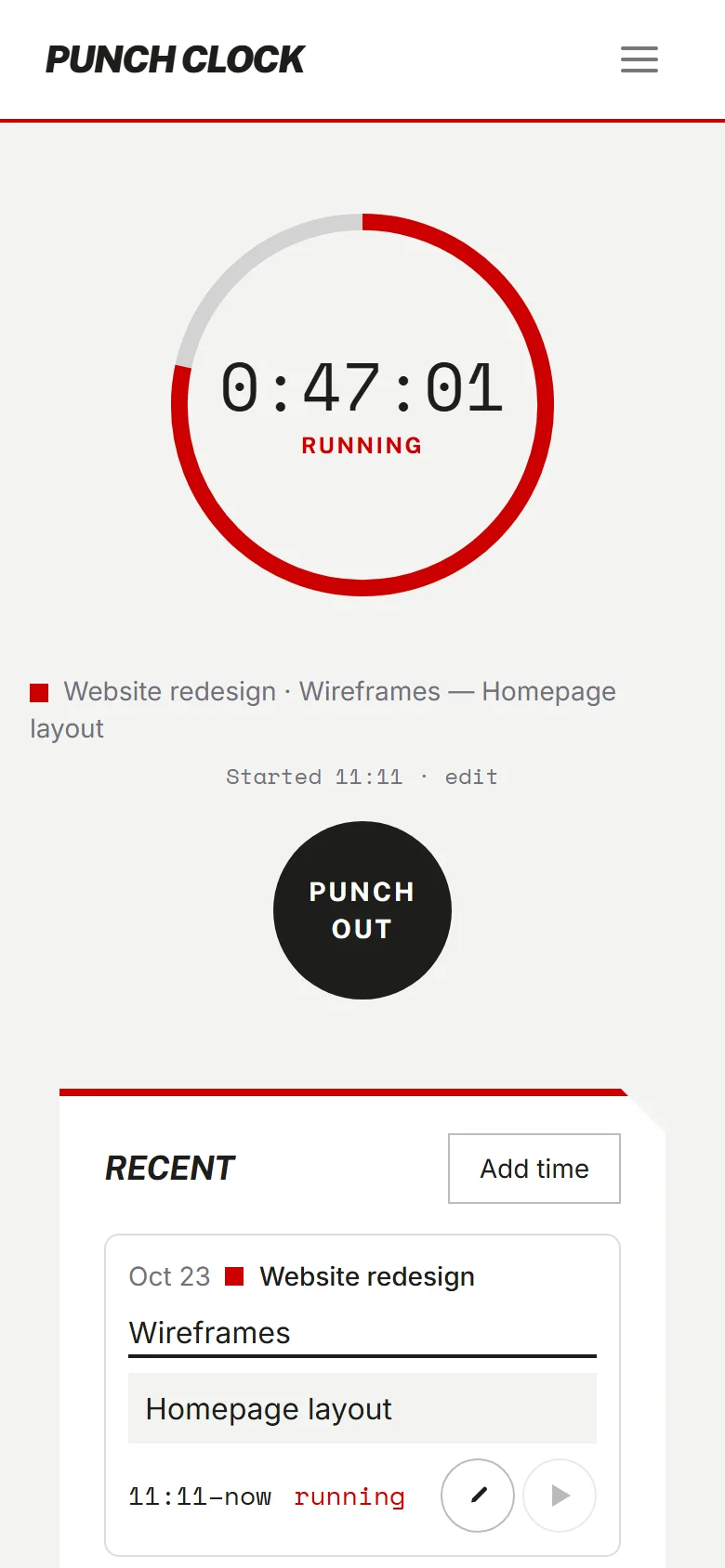
The layout adapts to a phone screen, so you can start and stop the timer on the move. At a desk, press Enter to save the entry dialog and use the arrow keys to move through the task picker.
Your data, your call
Delete your account from Settings. We email a confirmation link, and opening it erases the account, the workspace and every project, task and time entry in it. Immediately and permanently.